This article is an AI-assisted translation of the original French content.
This post presents a method for using the IntelliJ debugger (running with breakpoints and step-by-step execution) with a TamboUI application.
What is TamboUI? Link to heading
TamboUI is a Java library for building terminal user interfaces. Like Ratatui for Rust or Textual for Python, the library allows you to build rich text interfaces for terminals with all the modern features needed to develop a CLI in Java.
Here is an example of a TUI that can be created with TamboUI:
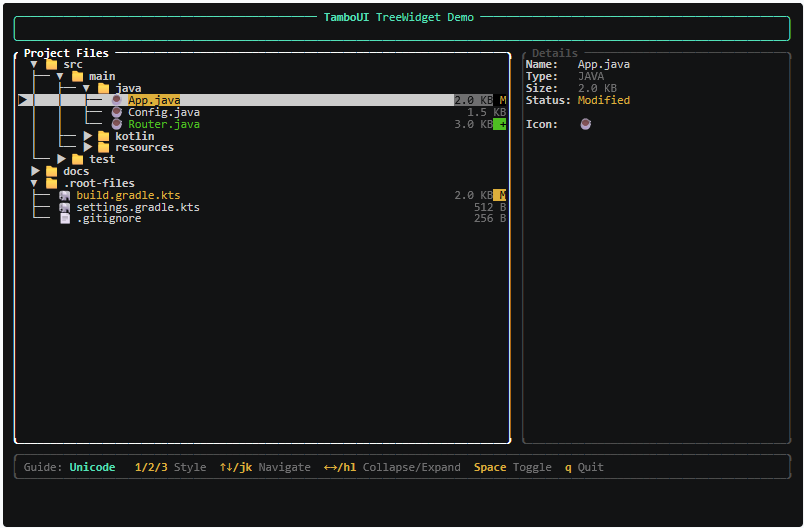
There are many other examples here
A TamboUI Java application can turn out to be very simple to write thanks to the many available components that provide all sorts of ready-made user interfaces: this is notably the case when using the Toolkit DSL API You can display a table very easily with a few lines of code:
//DEPS dev.tamboui:tamboui-toolkit:0.4.0
//DEPS dev.tamboui:tamboui-panama-backend:0.4.0

package poc;

import dev.tamboui.toolkit.app.ToolkitApp;
import dev.tamboui.toolkit.element.Element;
import dev.tamboui.widgets.table.Row;
import dev.tamboui.widgets.table.TableState;

import static dev.tamboui.toolkit.Toolkit.fill;
import static dev.tamboui.toolkit.Toolkit.table;

public class HelloTamboUI extends ToolkitApp {

    @Override
    protected Element render() {
        TableState state = new TableState();
        state.select(3);
        return table()
                .onBlue()
                .white()
                .header("Id", "Title", "Author")
                .columnSpacing(2)
                .state(state)
                .widths(fill(), fill(), fill())
                .rows(Row.from("1", "The Pillars of the Earth", "Ken Follett"),
                        Row.from("2", "World Without End", "Ken Follett"),
                        Row.from("3", "Les Trois Mousquetaires", "Alexandre Dumas"),
                        Row.from("4", "Le Comte de Monte-Cristo", "Alexandre Dumas"),
                        Row.from("5", "Quatre-vingt-treize", "Victor Hugo"),
                        Row.from("6", "Les Misérables", "Victor Hugo")
                )
                .title("Welcome to TamboUI!")
                .rounded();
    }

    public static void main(String[] args) throws Exception {
        new HelloTamboUI().run();
    }
}
How to debug a TamboUI application? Link to heading
Some applications can be much more complex and require debugging. However, it is not possible to run a TamboUI application in debug mode within an IDE such as IntelliJ, because there is no underlying terminal to receive tamboUI’s UI output.
Let’s see how to run a TamboUI application in a terminal outside the IDE and drive step-by-step execution from IntelliJ.
NB: the example developed here relies on the code of TamboUI version 0.4.0: it is possible that using debugging will no longer necessarily be required to understand what happens in a later version
Running with jbang
Link to heading
The demonstration will be done by running the TamboUI application using jbang: this is a very handy tool for running
a Java application from the command line without having to rebuild the classpath (which the IDE normally does). jbang takes
care of:
- compiling the Java class
- fetching the dependencies to complete the application’s classpath at runtime
- the complexity of the
javacommand’s options, by offering simpler options for the developer to use
Dependencies are specified at the top of the Java class through comments, like this:
//DEPS dev.tamboui:tamboui-toolkit:0.4.0
//DEPS dev.tamboui:tamboui-panama-backend:0.4.0
The minimum required dependencies for a TamboUI application are an API level (here tamboui_toolkit) and a backend enabling
actual rendering in the terminal (here tamboui-panama-backend).
A simple command launches the application (after a compilation that is performed automatically):
jbang /path/toTamboUIApplication.java
If everything goes well, the application starts in the terminal. Here is an example where the application fails to start:
$ jbang src/main/java/poc/HelloTamboUI.java
[jbang] Building jar for HelloTamboUI.java...
Exception in thread "main" dev.tamboui.terminal.BackendException: No BackendProvider found on classpath.
Add a backend dependency such as tamboui-jline3-backend or tamboui-panama-backend.
        at dev.tamboui.terminal.BackendFactory.tryProviders(BackendFactory.java:139)
        at dev.tamboui.terminal.BackendFactory.create(BackendFactory.java:91)
        at dev.tamboui.tui.TuiRunner.create(TuiRunner.java:186)
        at dev.tamboui.toolkit.app.ToolkitRunner.create(ToolkitRunner.java:122)
        at dev.tamboui.toolkit.app.ToolkitApp.run(ToolkitApp.java:100)
        at poc.HelloTamboUI.main(HelloTamboUI.java:44)
Yet the header of the HelloTamboUI.java class does contain the line //DEPS dev.tamboui:tamboui-panama-backend:0.4.0:
at least one backend is present on the classpath: let’s run the application in debug mode to understand what is happening
in the BackendFactory class.
Setting up the Remote JVM Debug run configuration in IntelliJ Link to heading
The error message above, produced in the BackendFactory.tryProviders method, suggests that the providers collection
in the BackendFactory.create method is empty: by debugging the call to SafeServiceLoader.load, we should be able
to understand why (we are not forcing the backend with the tamboui.backend property nor with a TAMBOUI_BACKEND environment
variable in the current run)
So we set a breakpoint on the SafeServiceLoader#load(java.lang.Class<S>) method in IntelliJ:
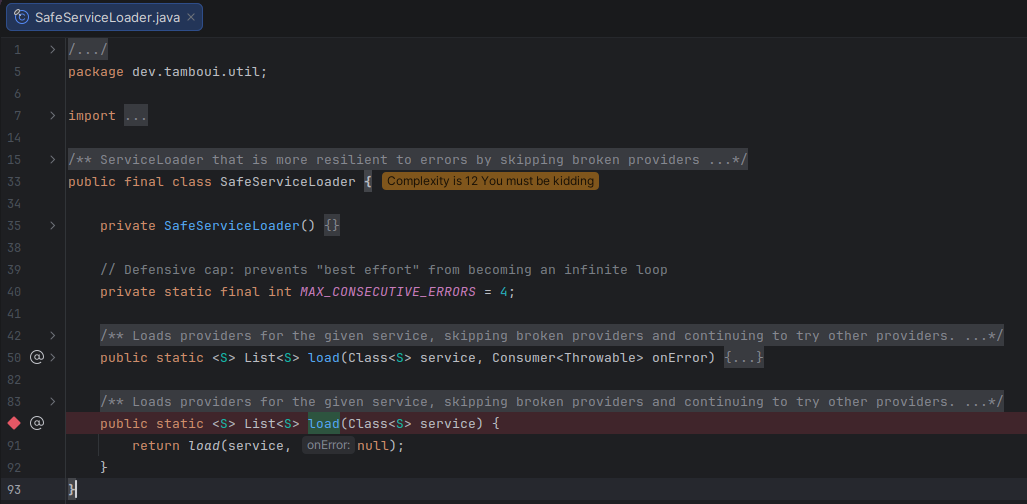
Configuring the --debug option and launching
Link to heading
The JVM running the TamboUI application is launched by jbang, so we pass an option to jbang to request a
debug-mode run of the application: the --debug option:
$ jbang --debug  src/main/java/poc/HelloTamboUI.java
Listening for transport dt_socket at address: 4004
Using jbang’s --debug option is equivalent here to passing the option -agentlib:jdwp=transport=dt_socket,server=y,suspend=y,address=4004
to the JVM. This option allows the debugger to control the application’s execution via breakpoints and step-by-step execution, following the protocol defined for the
Java Platform Debugger Architecture (JPDA). Note that
the suspend=y option suspends the application’s current execution until a debugger able to control the execution connects
(otherwise the application could terminate before the breakpoints could be transmitted). The connection is made here over network port 4004
(the port determined by jbang).
Debugging Link to heading
Once the application is launched and waiting for a debugger, the IntelliJ debugger needs to be attached to it. This can be done as follows:
- Menu > Run > Attach to Process… (CTRL+ALT+5)
- In the window that appears, select the correct Java process (the one mentioning the main class name, here
poc.HelloTamboUI) - Click Attach with Java Debugger
- The TamboUI application is unblocked and the debug view opens at the breakpoint set on the
SafeServiceLoader.loadmethod
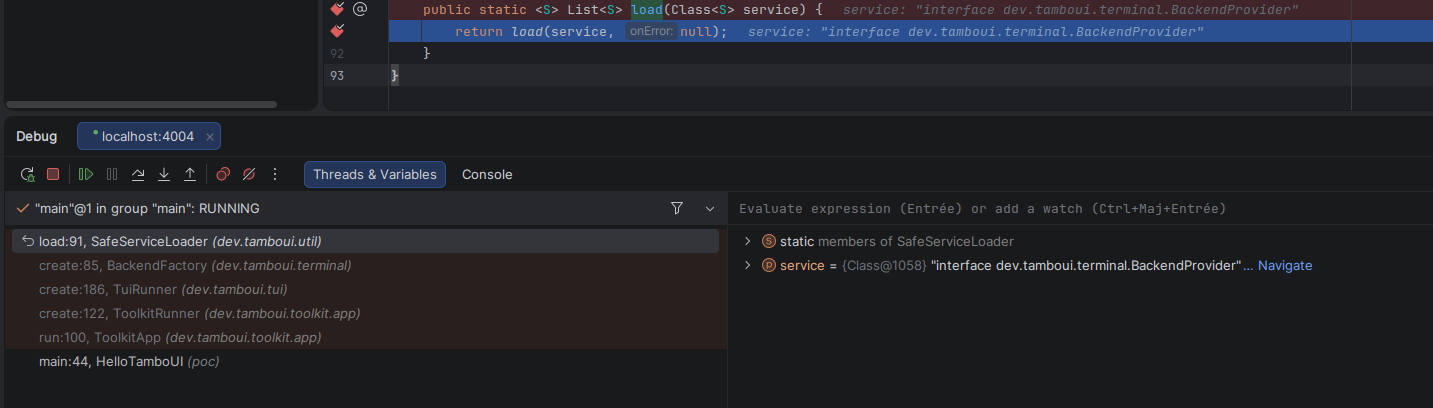
Origin of the error Link to heading
- We step into the
dev.tamboui.util.SafeServiceLoader#load(java.lang.Class<S>, java.util.function.Consumer<java.lang.Throwable>)method with Step Into (F7) - We step through this method’s execution (Step Over (F8)) until we land in a
catchblock:
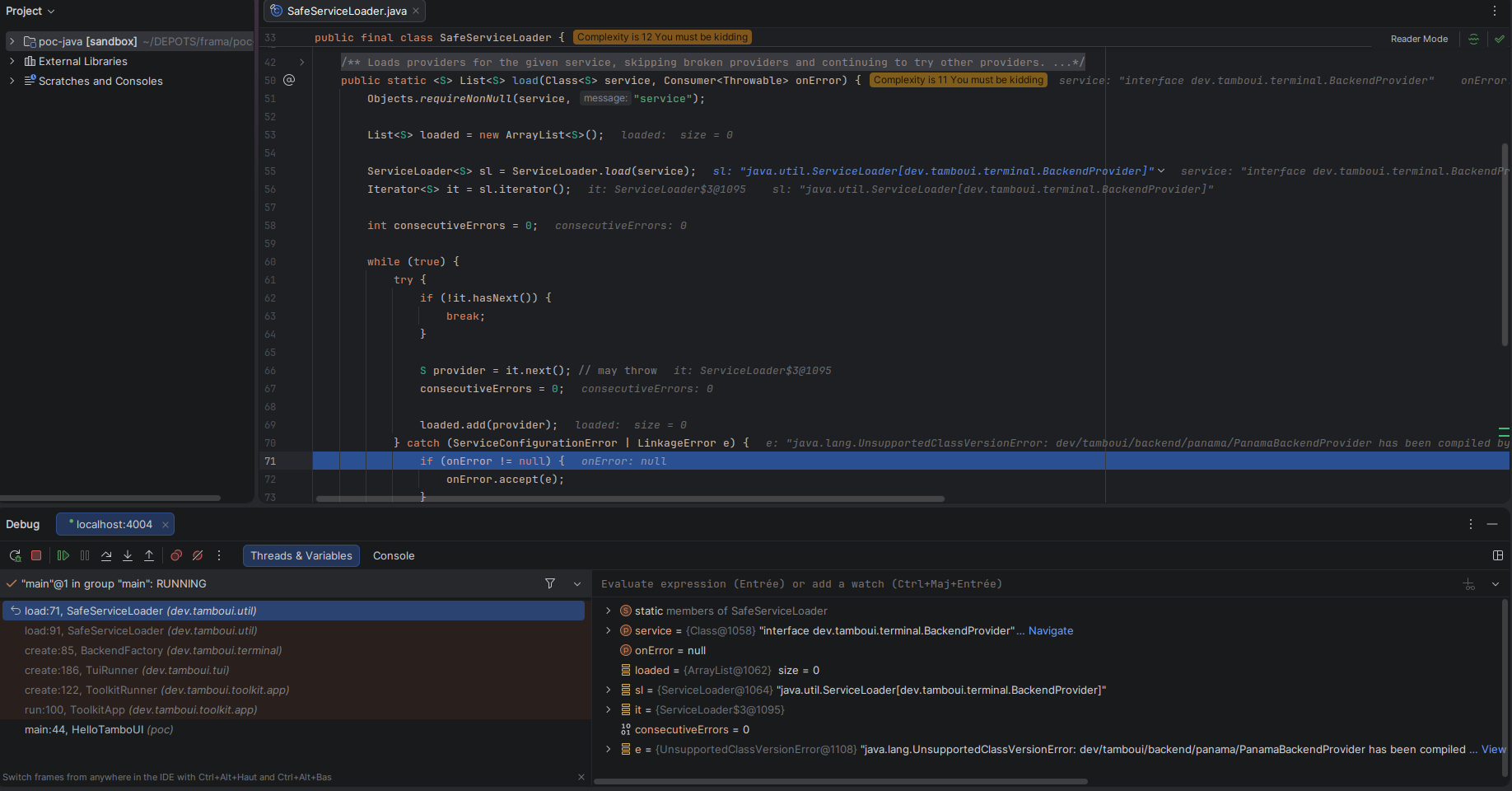
Reading the error message, it reads:
"java.lang.UnsupportedClassVersionError: dev/tamboui/backend/panama/PanamaBackendProvider has been compiled by a more recent version
of the Java Runtime (class file version 66.0), this version of the Java Runtime only recognizes class file versions up to 65.0"`
The explanation is that the version of Java used to run the application (Java 21) is too old to use TamboUI’s panama backend (which requires Java 22+). This backend indeed relies on JEP 454, which shipped with Java 22.
We also notice that the dev.tamboui.terminal.BackendFactory#create method called SafeServiceLoader without a handler
to manage errors during backend provider instantiation, which causes the error to be silently ignored and the application
to fail without a clear explanation. Handling of UnsupportedClassVersionError-type errors could be added to warn
the user that the Java version is not the right one: the dev.tamboui.util.SafeServiceLoader#load(java.lang.Class<S>, java.util.function.Consumer<java.lang.Throwable>)
method allows for this.
Resolution Link to heading
Let’s run the application with Java 25:
- either by putting Java 25 in the PATH
- or by setting a JAVA_HOME environment variable
- or with jbang options to specify the Java version to use (may trigger the download of a JDK)
By changing the Java version in the PATH with a tool like mise, the jbang command stays the same.
Here is the result:

Conclusion Link to heading
- If the IDE used does not offer a full terminal, as is the case with IntelliJ, it is not possible to run a TamboUI application directly within the IDE
- A practical solution is to run the application in a separate terminal.
- Tools such as Maven with
mvn compile exec:javaor jbang make it easy to run the application, handling compilation as needed and automatically adding the required dependencies to the classpath - The application running in the terminal (in a JVM not controlled by the IDE) can be debugged by letting the IDE drive execution via breakpoints and step-by-step instructions in the IDE, by launching the TamboUI application’s JVM with the right option.
jbangoffers a simple option for debugging applications:--debug